 Celeb Deep
Wan VACE Video Nudify Workflow Tutorial
Nudify any video
This method uses the Wan VACE model to create a nude version of a given video.
The method utilizes the GroundingDinoSAMSegment node and MatAnyone node to automatically recognize clothing and video mask it. The whole process now takes place in a single workflow file.
Downloads required
Download the two JSON workflow files here: https://gofile.io/d/bqP99R
Wan VACE GGUF: https://huggingface.co/QuantStack/Wan2.1_14B_VACE-GGUF/tree/main
Wan Self-Forcing Lora: https://civitai.com/models/1585622/causvid-accvid-lora-massive-speed-up-for-wan21-made-by-kijai
Wan Female Genitalia Lora: https://civitai.com/models/1434650/nsfwfemale-genitals-helper-for-wan-t2vi2v?modelVersionId=1621698
Wan General NSFW Model: https://civitai.com/models/1307155/wan-general-nsfw-model-fixed?modelVersionId=1475095
Wan Clip GGUF: https://huggingface.co/city96/umt5-xxl-encoder-gguf/tree/main
Wan VAE: https://huggingface.co/Comfy-Org/Wan_2.1_ComfyUI_repackaged/tree/main/split_files/vae
Upscaler Model: https://openmodeldb.info/models/4x-LSDIR
SDXL_Pony_Realism: https://civitai.com/models/372465/pony-realism?modelVersionId=1920896
SDXL_Controlnet: https://huggingface.co/xinsir/controlnet-union-sdxl-1.0/blob/main/diffusion_pytorch_model.safetensors
MatAnyone_Kytra: https://huggingface.co/Mothersuperior/ComfyUI_MatAnyone_Kytra/blob/main/matanyone.pth
Important Note about GGUF Models:
GGUF models are listed based on Q# (eg. Q4, Q5, Q8). Basically, the lower number after the Q, the easier it is to run that model. However, the quality of the model also goes down. Based on your GPU and RAM, you’ll need to find which model works best with your setup.
Exact File Locations:
ComfyUI/models/checkpoints/sdxl_pony_realism.safetensors
ComfyUI/models/loras/wan_general_nsfw.safetensors
ComfyUI/models/loras/wan_self_forcing_lora.safetensors
ComfyUI/models/loras/wan_female_genitalia_lora.safetensors
ComfyUI/models/vae/wan_2.1_vae.safetensors
ComfyUI/models/unet/YOUR_WAN_VACE_GGUF_MODEL.gguf
ComfyUI/models/clip/YOUR_WAN_CLIP_GGUF_MODEL.gguf
ComfyUI/models/upscale_models/4x-LSDIR.pth
ComfyUI/models/controlnet/diffusion_pytorch_model.safetensors
NOTE: If you don’t see ComfyUI_MatAnyone_Kytra in custom_nodes, you’ll need to download all custom nodes within the ComfyUI interface beforehand. Specifically the ComfyUI_MatAnyone_Kytra node.
Initial Setup
Configuration:
- Configure your settings as desired
- Load your WAN VACE, CLIP, and VAE models into their respective slots
- Set resolution to 480×832 or 832×480 for optimal processing
- Configure video_fps and length.
- Both values will directly determine how much of your video you will cover. For example, if you set the frame rate at 12, with length at 48, the result will be 4 seconds total.
- Configure Skip_First_frame if you want to skip any initial parts of the input video. These are affected by the video_fps similar with the length setting.
- Configure the Mask Objects setting to fit your desired objects to mask out of the video. It’s currently set up to remove clothing.
Running the Workflow
1. Upload your video in the Input Video node group.
2. Run the Workflow.
4. That should be all. The output contains both the generated video and a side-by-side comparison of the generated video and input video.
5. I included an interpolate_and_upscale workflow as well if you would like to do that. It’s a very simple workflow.
Workflow Overview
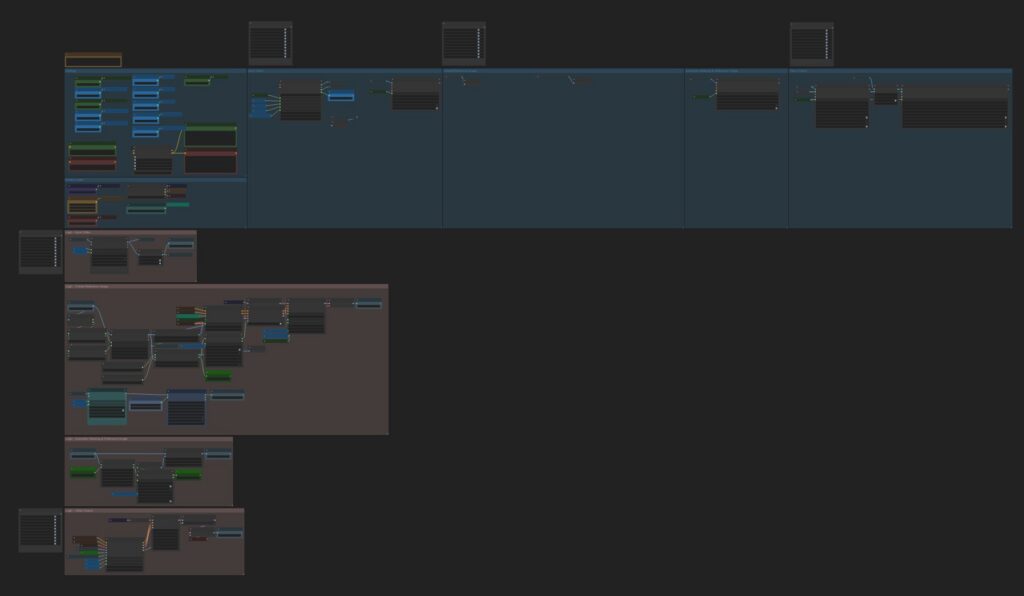
Main Workflow Organization:
- User Input Section (Blue) – Where you’ll make most of your adjustments
- Logic Section (Red) – Handles processing automatically (rarely needs modification for newer users)
Image below shows the blue and red regions described above:
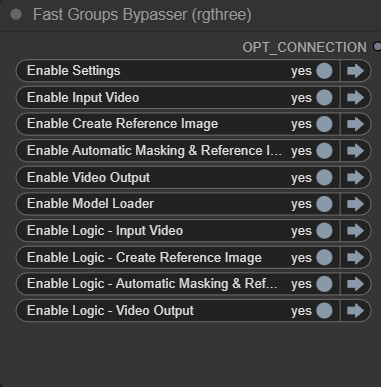
You will see these Fast Groups Bypasser nodes throughout the workflow, this is to activate and deactivate certain groups. In the new V2 workflow, we won’t be using these as often as V1, but it’s good to know they’re here.
Plain-English summary:
- Upload source video in the input node group.
- The workflow detects target objects automatically.
- It builds masks across frames using segmentation + matting.
- The generation model processes the masked video sequence.
- Output includes both the generated video and a side-by-side comparison.
- Optional second workflow can interpolate and upscale the result.
What is actually useful to know:
- The workflow is designed to keep most user edits in the blue input/config area, while the red logic area is mostly internal processing.
- Fast Groups Bypasser nodes are just toggles to enable or disable workflow sections.
- Lower-quantized GGUF models are easier to run, but lower fidelity.
- Longer clips, higher fps, and higher resolution all increase VRAM use, RAM use, and render time substantially.
It is basically an automated ComfyUI video pipeline: load models, detect and mask chosen objects in a video, run a Wan-based generation pass, then optionally enhance the output.